Organizations
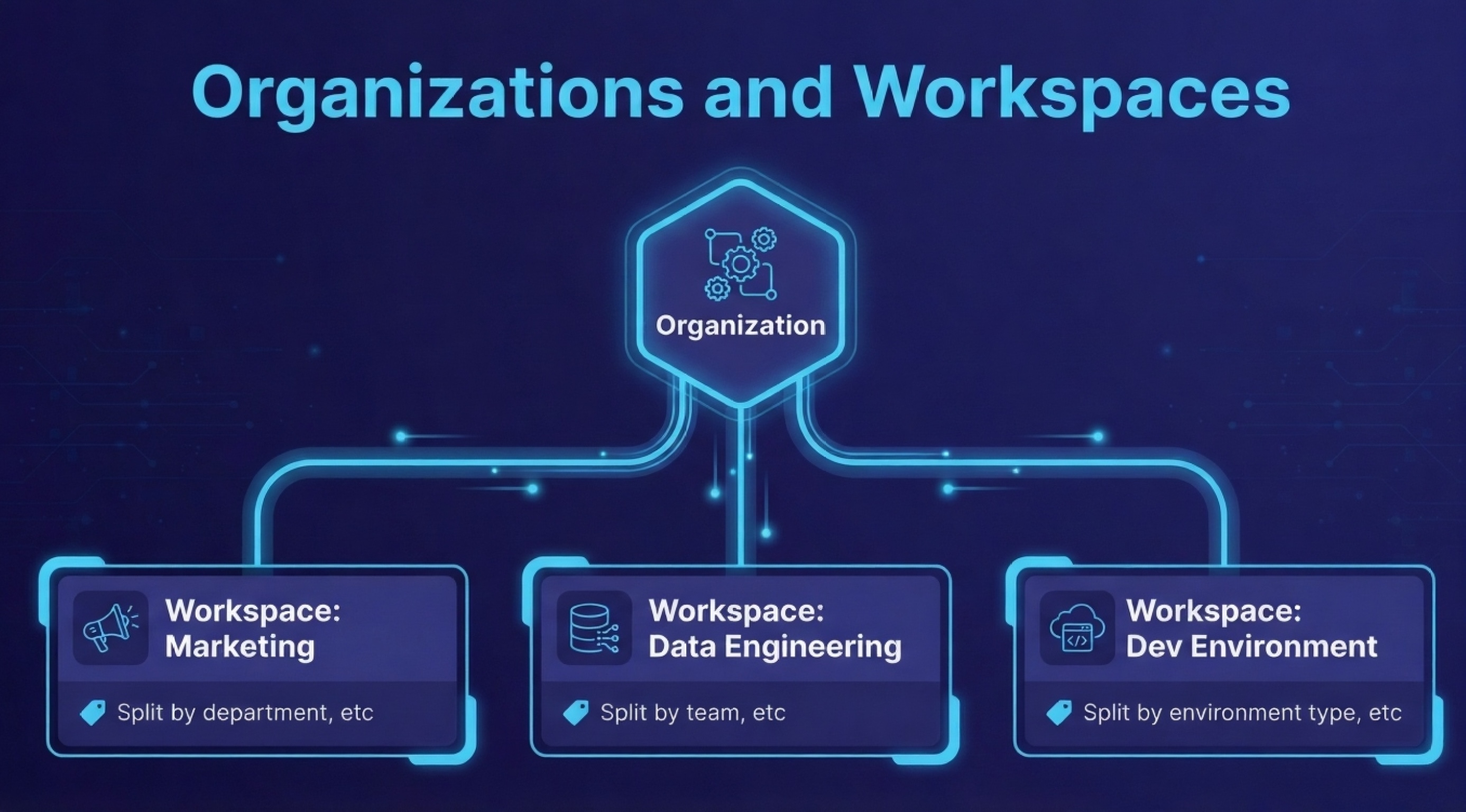
Create and manage organizations to control billing, provision workspaces, and collaborate with your team. Here's a visual overview of the relationship between organizations and workspaces:
Create an Organization
Before you can create workspaces or invite team members, you'll need to set up an organization.
- Navigate to Organizations in the Eugo platform
- Click Create Organization
- Fill in the required fields:
- Organization Name: Your company or team name
- Identifier: A unique URL-friendly identifier (used in URLs and must be unique across Eugo)
- Select a billing plan
- Add a payment method
- Click Complete Setup
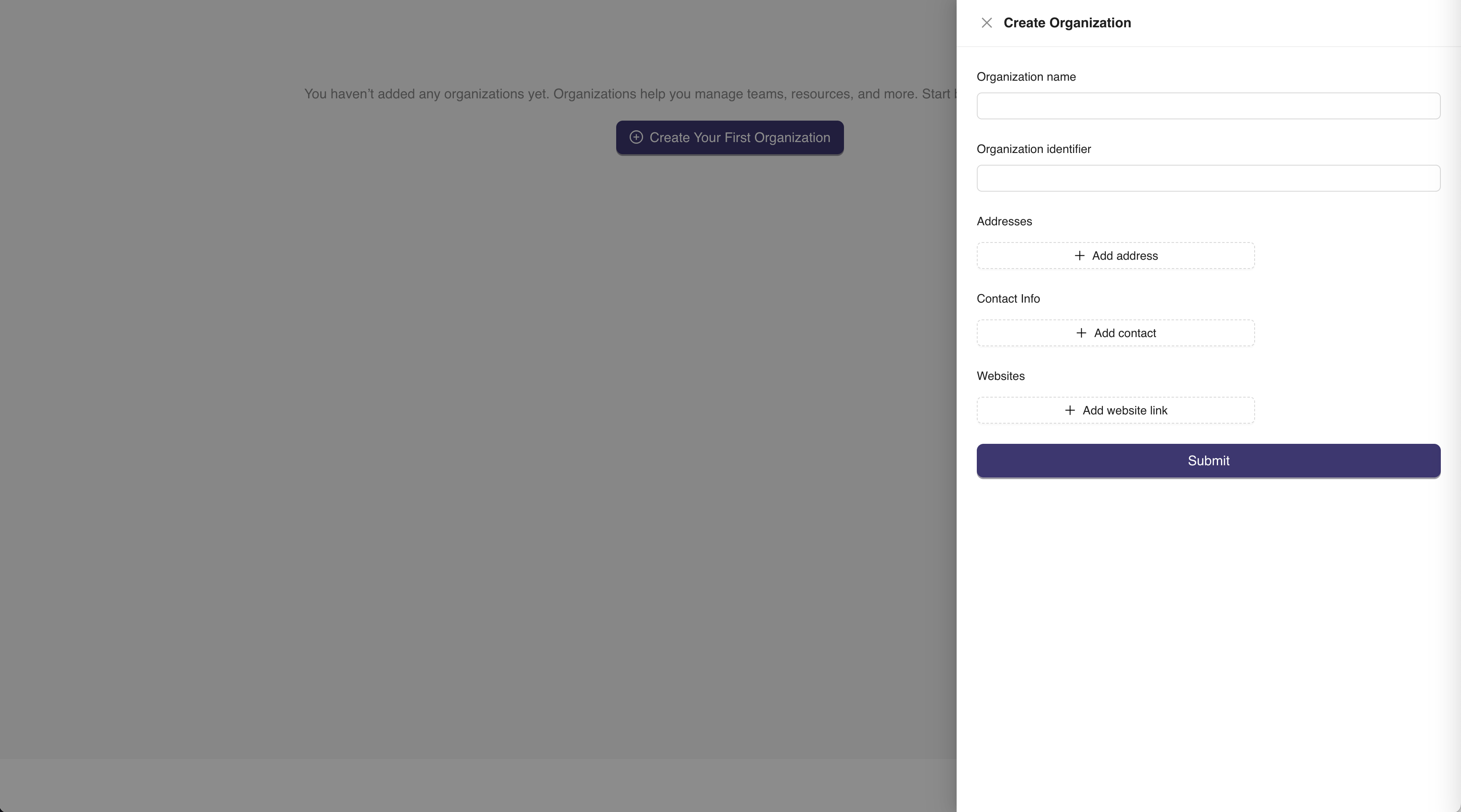
Once created, you're automatically assigned as the Organization Owner with full administrative access. You can now create workspaces and invite team members.
Switch Between Organizations
When you belong to multiple organizations, you can quickly switch between them to access different workspaces and settings.
- Click the organization selector at the top of the left sidebar
- Select the organization you want to work with from the list
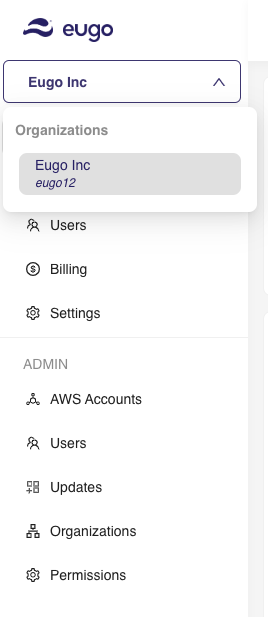
The platform immediately updates to display the workspaces, team members, and settings for the selected organization.
Invite Team Members
To collaborate with your team, invite users to join your organization:
- Select your organization from the sidebar
- Click Users in the left navigation menu
- Click Add user
- Enter the user's email address
- Select their role from the dropdown
- Click Submit
Each invited user receives an email invitation with a link to accept. They can join using their existing Eugo account or create a new one during the acceptance process.
Users can belong to multiple organizations with the same account. When you invite someone by email, they'll join your organization while maintaining access to any other organizations they belong to.
For detailed instructions on inviting users, assigning roles, and managing permissions, see User Management.
Configure Organization Settings
Update your organization's information and manage administrative functions from the Organization Settings page.
To access organization settings:
- Select your organization from the sidebar
- Click Settings in the left navigation menu
- Click Update on the section you want to modify
- Make your changes in the drawer that opens
- Click Submit to save
Available settings sections:
- Organization Info — Update your company name (identifier cannot be changed after creation)
- Address Info — Maintain your headquarters location and physical addresses
- Contact Info — Add or update phone numbers
- Website Info — Link your company websites and online presence
- Additional emails — Add email addresses to receive important notifications about billing, service updates, and account activity
- Transfer Ownership — Transfer administrative control to another team member in your organization
- Delete Organization — Permanently remove the organization and all its data
Changes to organization settings apply to all workspaces and team members within the organization.
For step-by-step instructions on each setting, see Organization Settings.
Work Across Multiple Organizations
You can join multiple organizations with a single Eugo account. This lets you:
- Manage projects for different clients or companies
- Keep personal and work projects separate with independent billing
- Collaborate with different teams without creating multiple accounts
To join additional organizations:
- Ask an Organization Owner to invite you by email
- Check your email for the invitation from Eugo
- Click the link in the email or navigate to Invitations from your profile menu
- Review the invitation details and click Accept
Each organization maintains its own workspaces, team members, and billing. Use the organization selector in the sidebar to switch between them and access their respective resources.